Blob Storage Challenge in the Neighborhood

Objective
| Difficulty | Description |
|---|---|
| 1/5 | Help the Goose Grace near the pond find which Azure Storage account has been misconfigured to allow public blob access by analyzing the export file. |
Goose Grace mission statement
HONK!!! HONK!!!!
The Neighborhood HOA uses Azure storage accounts for various IT operations.
You’ve been asked to audit their storage security configuration to ensure no sensitive data is publicly accessible.
Recent security reports suggest some storage accounts might have public blob access enabled, creating potential data exposure risks.
Blob Challenge Terminal
This objective introduces a common cloud security failure mode: publicly accessible object storage caused by misconfiguration rather than exploitation. Instead of interacting directly with the storage service, I am required to analyze an exported dataset to identify which Azure Storage account permits anonymous blob access.
The challenge emphasizes that cloud security assessments often rely on configuration artifacts and metadata rather than live probing. By reviewing the export file, I can determine where access controls have been relaxed in a way that exposes data to unintended audiences.
This mirrors real-world scenarios where sensitive data exposure is discovered through audits, inventory reviews, or configuration exports, reinforcing the importance of visibility and continuous configuration monitoring in cloud environments.

Getting help
Prototype command:
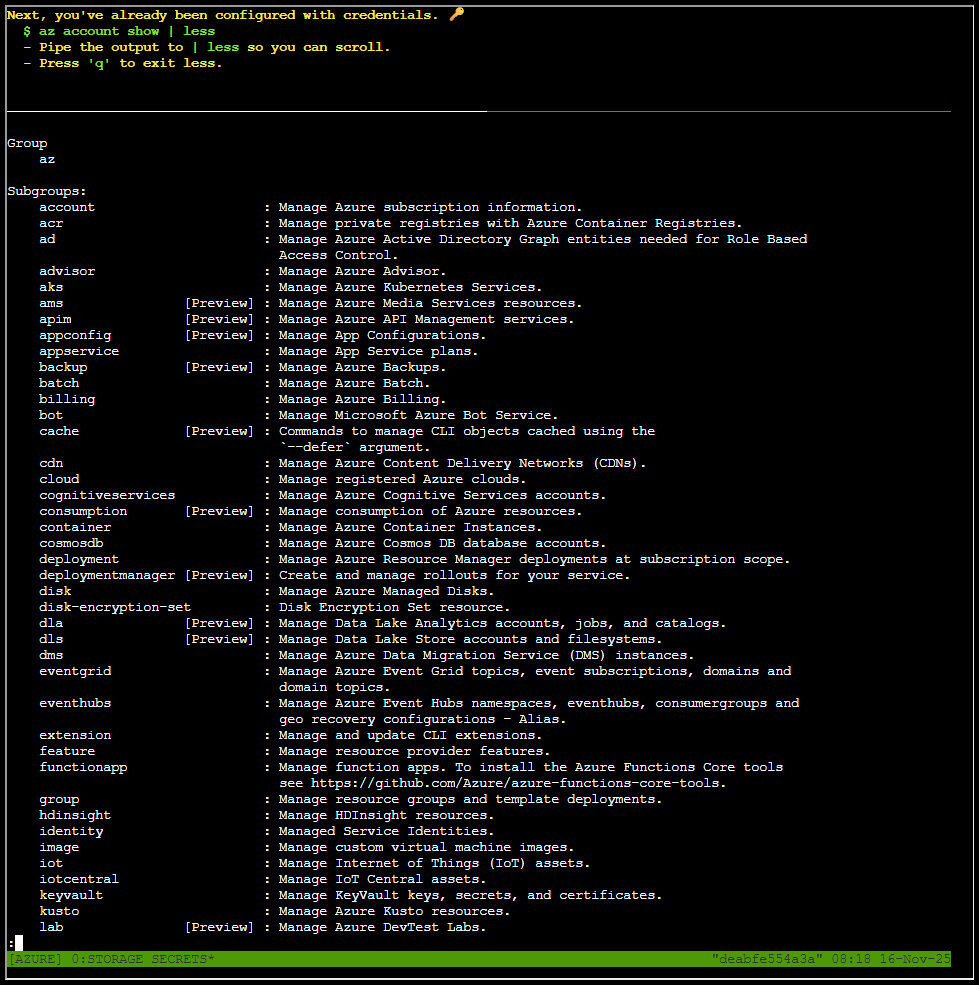
az help | less
And we got help:
Listing accounts
Prototype command:
az account show | less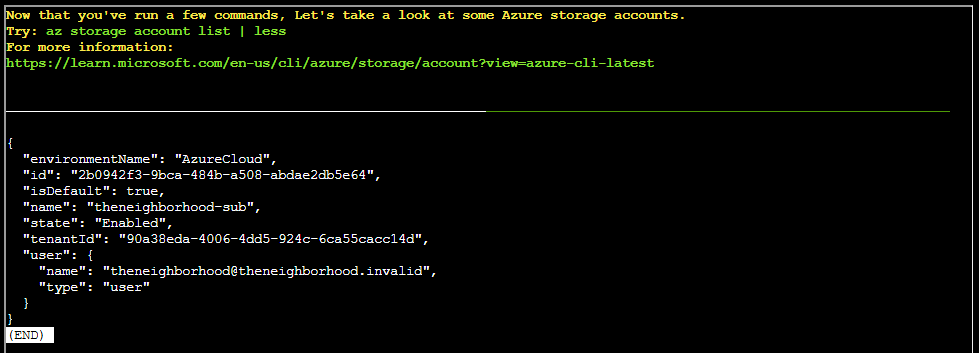
Listing Azure storage accounts
Prototype command:
az storage account list | less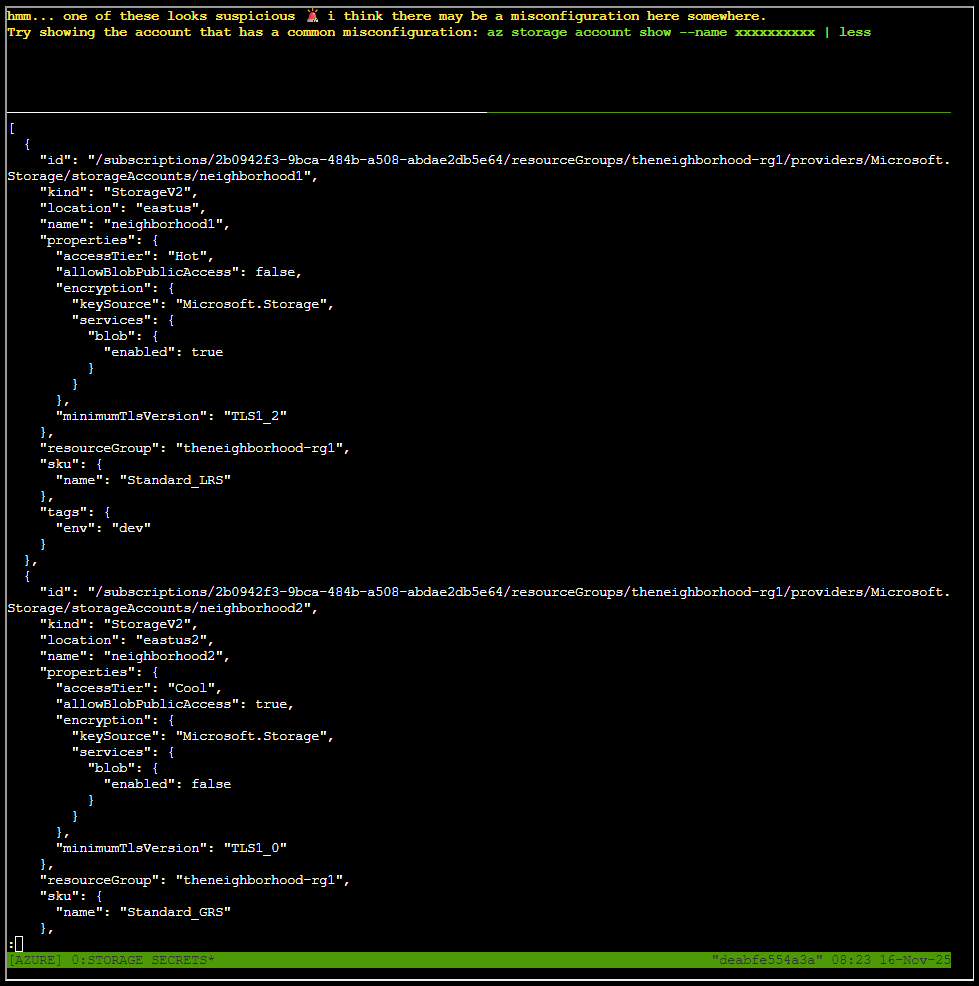
The output is shown here in is full glory:
[
  {
    "id": "/subscriptions/2b0942f3-9bca-484b-a508-abdae2db5e64/resourceGroups/theneighborhood-rg1/providers/Microsoft.Storage/storageAccounts/neighborhood1",
    "kind": "StorageV2",
    "location": "eastus",
    "name": "neighborhood1",
    "properties": {
      "accessTier": "Hot",
      "allowBlobPublicAccess": false,
      "encryption": {
        "keySource": "Microsoft.Storage",
        "services": {
          "blob": {
            "enabled": true
          }
        }
      },
      "minimumTlsVersion": "TLS1_2"
    },
    "resourceGroup": "theneighborhood-rg1",
    "sku": {
      "name": "Standard_LRS"
    },
    "tags": {
      "env": "dev"
    }
  },
  {
    "id": "/subscriptions/2b0942f3-9bca-484b-a508-abdae2db5e64/resourceGroups/theneighborhood-rg1/providers/Microsoft.Storage/storageAccounts/neighborhood2",
    "kind": "StorageV2",
    "location": "eastus2",
    "name": "neighborhood2",
    "properties": {
      "accessTier": "Cool",
      "allowBlobPublicAccess": true,
      "encryption": {
        "keySource": "Microsoft.Storage",
        "services": {
          "blob": {
            "enabled": false
          }
        }
      },
      "minimumTlsVersion": "TLS1_0"
    },
    "resourceGroup": "theneighborhood-rg1",
    "sku": {
      "name": "Standard_GRS"
    },
        "tags": {
      "owner": "Admin"
    }
  },
  {
    "id": "/subscriptions/2b0942f3-9bca-484b-a508-abdae2db5e64/resourceGroups/theneighborhood-rg2/providers/Microsoft.
Storage/storageAccounts/neighborhood3",
    "kind": "BlobStorage",
    "location": "westus",
    "name": "neighborhood3",
    "properties": {
      "accessTier": "Hot",
      "allowBlobPublicAccess": false,
      "encryption": {
        "keySource": "Microsoft.Keyvault",
        "services": {
          "blob": {
            "enabled": true
          }
        }
      },
      "minimumTlsVersion": "TLS1_2"
    },
    "resourceGroup": "theneighborhood-rg2",
    "sku": {
      "name": "Standard_RAGRS"
    },
    "tags": {
      "department": "NeighborhoodWatch"
    }
  },
  {
    "id": "/subscriptions/2b0942f3-9bca-484b-a508-abdae2db5e64/resourceGroups/theneighborhood-rg2/providers/Microsoft.
Storage/storageAccounts/neighborhood4",
    "kind": "StorageV2",
    "location": "westus2",
    "name": "neighborhood4",
    "properties": {
      "accessTier": "Hot",
      "allowBlobPublicAccess": false,
      "minimumTlsVersion": "TLS1_2",
      "networkAcls": {
        "bypass": "AzureServices",
        "virtualNetworkRules": []
      }
    },
    "resourceGroup": "theneighborhood-rg2",
    "sku": {
      "name": "Premium_LRS"
    },
    "tags": {
      "critical": "true"
    }
  },
  {
    "id": "/subscriptions/2b0942f3-9bca-484b-a508-abdae2db5e64/resourceGroups/theneighborhood-rg1/providers/Microsoft.
Storage/storageAccounts/neighborhood5",
    "kind": "StorageV2",
    "location": "eastus",
    "name": "neighborhood5",
    "properties": {
      "accessTier": "Cool",
      "allowBlobPublicAccess": false,
      "isHnsEnabled": true,
      "minimumTlsVersion": "TLS1_2"
    },
    "resourceGroup": "theneighborhood-rg1",
    "sku": {
      "name": "Standard_LRS"
    },
    "tags": {
      "project": "Homes"
    }
  },
  {
    "id": "/subscriptions/2b0942f3-9bca-484b-a508-abdae2db5e64/resourceGroups/theneighborhood-rg2/providers/Microsoft.
Storage/storageAccounts/neighborhood6",
    "kind": "StorageV2",
    "location": "centralus",
    "name": "neighborhood6",
    "properties": {
      "accessTier": "Hot",
      "allowBlobPublicAccess": false,
      "minimumTlsVersion": "TLS1_2",
      "tags": {
        "replicate": "true"
      }
    },
    "resourceGroup": "theneighborhood-rg2",
    "sku": {
      "name": "Standard_ZRS"
    },
    "tags": {}
  }
]
Showing accounts with a common misconfiguration
At the very start we are given a hint that one of the accounts looks suspicious. We also get a prototype command:
az storage account show --name xxxxxxxxxx | lessFrom the JSON configuration (posted above), we see accounts named neighboorhood1 through neighborhood6. By looking at the configuration we see that account neighboorhood2 appears to be much suspicious based on these findings:
Finding A. Public blob access enabled
"allowBlobPublicAccess": trueThis means that anyone on the internet may access blob data if the container is configured as public. Attackers routinely scan Azure blobs for exposed data (exactly like S3 bucket scanning).
Finding B. At-rest encryption disabled
"blob": { "enabled": false }Azure nowadays forces encryption regardless, but this config still signals mismanagement. In older accounts or older tooling, this could mean plaintext at rest.
Finding C. TLS 1.0
"minimumTlsVersion": "TLS1_0"TLS1.0 is deprecated and vulnerable to known protocol-level weaknesses.
Finding D. Combined impact
If any container inside this account is set to public, attackers can enumerate and download everything silently:
- Public website files
- Uploaded backups
- Customer data
- Credentials accidentally uploaded
- Logs containing secrets
Public misconfigured blob containers are one of the top Azure data leak causes.
We can thus use this command directly to view more information about neighborhood2 account:
az storage account show --name neighborhood2 | less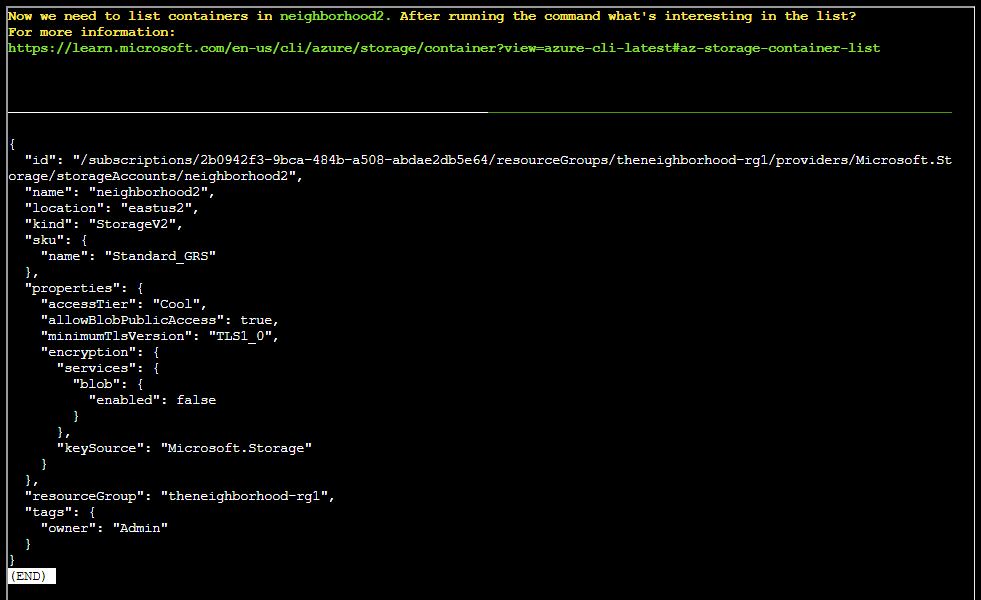
Listing containers
Other than stating we need to list containers in neighboorhood2, and a resource URL, no other hints or prototype commands are given. However, I have already solved the “Spare Key” objective - I’ll just reuse the concept from that objective here:
az storage container list --account-name neighborhood2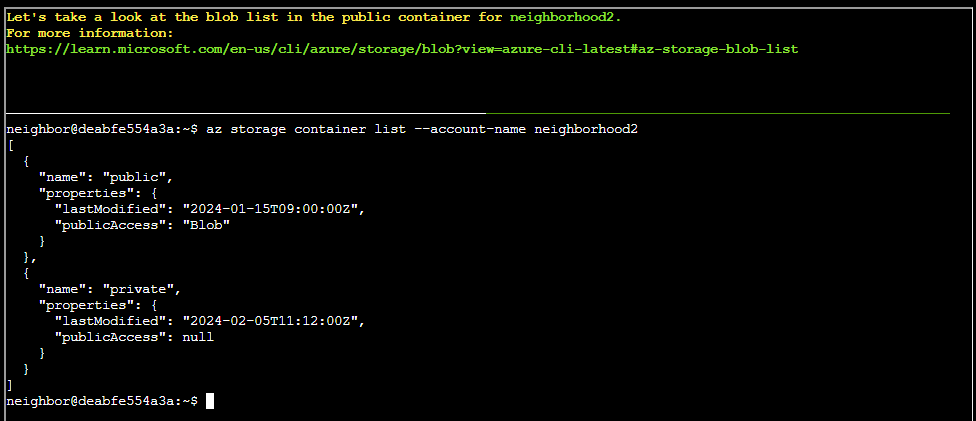
Listing blobs
Same procedure as for listing the containers, reuse the concept in “Spare Key”:
az storage blob list --container-name 'private' --account-name neighborhood2 --auth-mode login
az storage blob list --container-name 'public' --account-name neighborhood2 --auth-mode login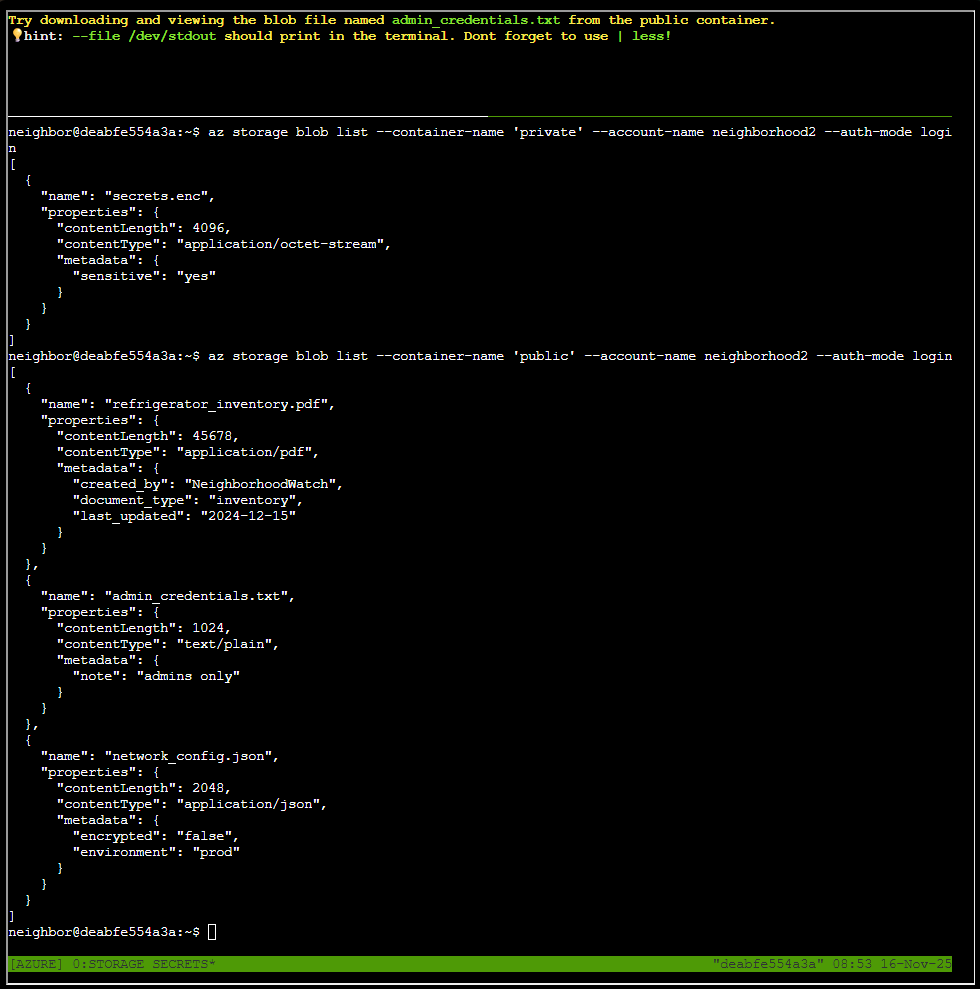
Downloading admin_credentials.txt
We are now to try downloading and viewing the blob file named admin_credentials.txt from the public container. Still, reusing the concept from “Spare Key”:
az storage blob download --container-name 'public' --account-name neighborhood2 --auth-mode login --name 'admin_credentials.txt' --file /dev/stdout | less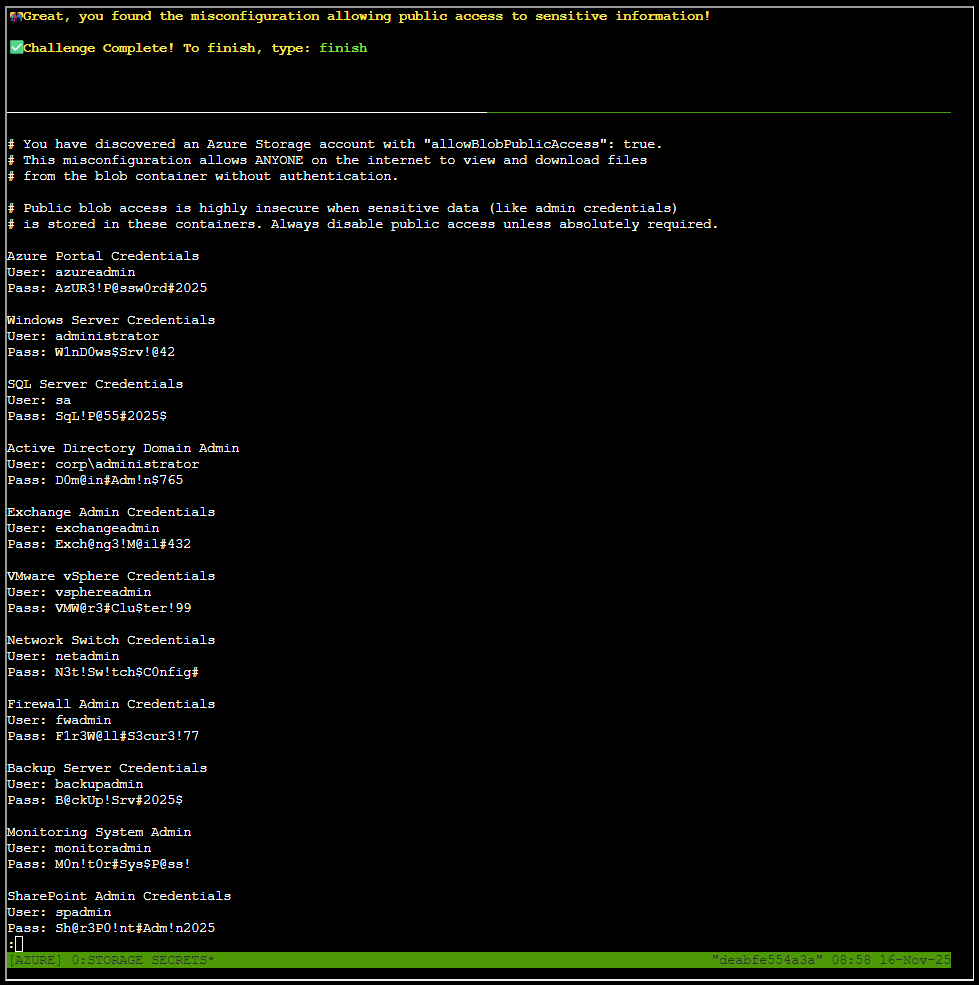
The entire admin_credentials.txt file is listed below:
# You have discovered an Azure Storage account with "allowBlobPublicAccess": true.
# This misconfiguration allows ANYONE on the internet to view and download files
# from the blob container without authentication.

# Public blob access is highly insecure when sensitive data (like admin credentials)
# is stored in these containers. Always disable public access unless absolutely required.

Azure Portal Credentials
User: azureadmin
Pass: AzUR3!P@ssw0rd#2025

Windows Server Credentials
User: administrator
Pass: W1nD0ws$Srv!@42

SQL Server Credentials
User: sa
Pass: SqL!P@55#2025$

Active Directory Domain Admin
User: corp\administrator
Pass: D0m@in#Adm!n$765

Exchange Admin Credentials
User: exchangeadmin
Pass: Exch@ng3!M@il#432

VMware vSphere Credentials
User: vsphereadmin
Pass: VMW@r3#Clu$ter!99

Network Switch Credentials
User: netadmin
Pass: N3t!Sw!tch$C0nfig#

Firewall Admin Credentials
User: fwadmin
Pass: F1r3W@ll#S3cur3!77

Backup Server Credentials
User: backupadmin
Pass: B@ckUp!Srv#2025$

Monitoring System Admin
User: monitoradmin
Pass: M0n!t0r#Sys$P@ss!

SharePoint Admin Credentials
User: spadmin
Pass: Sh@r3P0!nt#Adm!n2025

Git Server Admin
User: gitadmin
Pass: G1t#Srv!Rep0$C0de
This objective reinforces that cloud breaches often begin with misconfiguration, not compromise.
Goose Grace closing words
After solving, Grace says:
HONK HONK HONK! ‘No sensitive data publicly accessible’ they claimed. Meanwhile, literally everything was public! Good save, security expert!